If you get lots of phone calls that the users can’t do anything because one single user is locking the table you quickly end up in a stressful situation. This entry will be about to how to solve the locking and hopefully find the user that created the lock.
The quickest way to find out WHAT is locking is to open the page “Database Locks“. This page shows a snapshot of current locks. Refresh the page a couple of times to see which lock that persists, that is the one that is locking other users.
If you are lucky it is showing User Id. If it doesn’t it is no biggie since that is not needed to solve the locking issue. BUT, if you really want to know which user it is there are some steps you need to do before you fix/terminate the locking session. If you want that go to section “Find Who is Locking“.
Solve The Locking
If you can see the lock in page “Database Locks” the most important field is “Session ID”. That is the unique session that we want to terminate. There are some options to terminate sessions depending on which platform you run on.
- Session Killer
- Managing Sessions in the Admin Center (Saas)
- Remove-NAVServerSession via PowerShell (OnPrem Only)
- Restart the BC Server/Environment
- Kill the SQL-server session (OnPrem Only)
Session Killer
If you have been around you probably know you can create a “Session Killer” in Business Central by using the Session.StopSession command. However, it has some drawbacks. It can only stop the session if you are on the same server/NST as the user. And it will only stop the session when the user hits the next AL statement. Meaning, if the lock is due to a SQL operation or somebody is showing a confirm dialoge it won’t stop the session until the SQL operation is done or the user has pressed Yes/No on the confirm dialoge.
Managing Sessions in the Admin Center (Saas)
You can manage the user sessions for an environment by going to the environment and choose Sessions. There is a learn page Managing Sessions in the Admin Center (Saas).

Now you can se list of all the users and you need to find the session that locks which is the one you want to terminate. The “Session ID” is the BC server session id, not the SQL session id.

However this solutions also suffers from that it will stop on the next AL statement. If the session is running a long SQL command/query or a confirm dialoge is open it won’t stop session until the next al statement is reached and by then maybe the lock will disappear. Move along to chapter Restart the BC Server.
Remove-NAVServerSession via Powershell (OnPrem Only)
You can remove a session via powershell by using the command Remove-NavServerSession.
However this command has the same drawback as the session killer. It can only stop the session if it is located on the same server/NST as the user is connected to. And it will only stop the session when the user hits the next AL statement. Not stopping the SQL operation.
Restart the BC Server/Environment
The quickest (most obvious) way to remove the locking is to restart the BC server service/NAV Service Tier (NST) for OnPrem installations and restart the environment for SaaS. The drawback is that everyone else that is working on that NST/environment will be kicked out. A solution that could work for small customers with few users but for a bigger customer this can create a bigger buzz and some anger toward the system. Also, if you have several NST (OnPrem) you have to know which NST to restart or you just restart them all.
To restart the environment in SaaS, go to the Admin Center for the environment and choose sessions.
Well there, you have the “Restart Environment” option.

Kill the SQL-server session (OnPrem Only)
If you have access to the SQL server you can kill the user session there. What you need is the “SQL Session Id” from “Database Locks“. When you got that (see below picture), connect to the SQL server.

On the SQL Server, run the command sp_who to show all the users connected to the database.

Verify that the “SQL Session ID” matches the spid in the list. In the list you also see the loginname but this is useless to us. The reason for this is that the BC call is called via the user account that runs the NST account. But in the list we also have from which server the session is connected from (hostname). This can be used to track which user is locking but more about that in chapter Find target NST via SQL.
When verified that the session is in the list, run the command Kill <SQL Session ID> to close the session. That should instantly be reflected in BC where the user session is also killed.
Find the User Who is Locking
To find the user who is locking is easy in the “most” scenarios. Why I’m saying most is that I’m referring to SaaS customers and small on OnPrem customers that run either one NST or several NST on the same server. The reason for that is the page “Database Locks” only shows user that are logged into the same NST (OnPrem). Don’t know if the same condition apply to SaaS but I hope not. If you see the username there, congratulations! You can stop reading now.
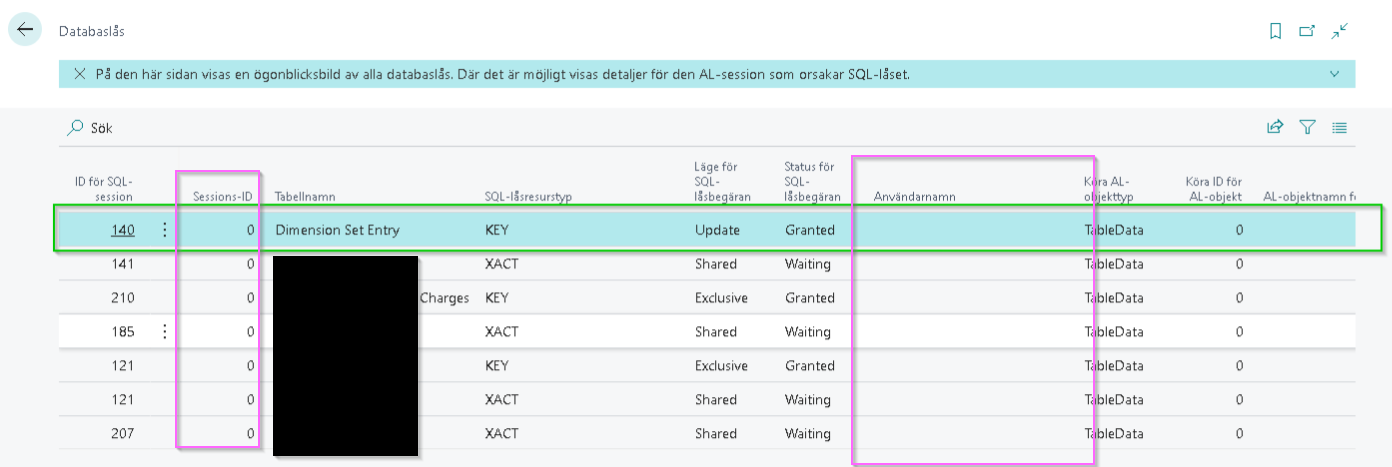
Now you probably thinking “Off course our scenario had to be the difficult one!”. Yeah, I know the feeling…
There are four ways to find the locking user:
- Find the target user session via telemetry
- Find the target NST via SQL (OnPrem)
- Log into each NST and check “Database Locks” for username (OnPrem)
Find the target user session via telemetry
There is a telemetry event RT00012 – Database lock timed out which can be used together with RT0013 – Database lock snapshot to get an overview over which session that is locking, and where in the code the lock is taken. However, you don’t get the username of who is locking, you get the session id of the user who is locking and if you are lucky you can use that to find the actual user who is locking but more about that later.
Another note, if you are on OnPrem you have to activate this first since these events demand manual activation for OnPrem.
In later versions of Business Central on-premises, the Business Central Server includes theEnableLockTimeoutMonitoringsetting. Use this setting to turn database lock timeout telemetry on or off. By default, it is off. For more information, see Configuring Business Central Server.
Now when we got the prerequisites handled, lets get the KQL script to crossjoin the events RT00012 and RT00013. Link to it can be found in this section or here is a direct link.
The most interesting parts in the result are:
- alStackTraceHoldingLock
- alSessionIdHoldingLock
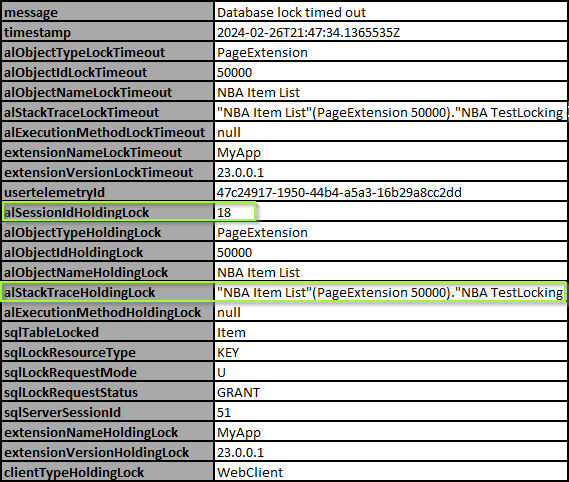
alStackTraceHoldingLock – gives away the stack trace from the locker which means we can actually see where in the code the lock is coming from which is great.
alSessionIdHoldingLock – gives which session that is holding the lock. Not really what we are looking for but if we are lucky we can open the Sessions in Admin Center (Saas) where we can see which user that has the session id or we can open the system table Active Sessions (table id: 2000000110) via url. See this tutorial if you haven’t done that before.
Example: <URL>/<BC_instance>/?company=CRONUS%20Sverige%20AB&table=2000000110
The reason why I say “if were are lucky” is that this only works if the session is still active. Which means that if the user has logged out, the session has timed out or you have killed the session we can’t see which user it was. So when locking happens you really need to be quick to find out who the user is because tomorrow it will be to late. A small comfort with this is that we at least can see from where in the code the lock was taken which can give us a hint why it locked in the first place.
Find the target NST via SQL (OnPrem)
Do you remember that I wrote in the section “Kill the SQL-server session (OnPrem Only)” that we can see in the SQL which host the user was calling from? This means that if we follow those steps we know which BC server the user is connected to. That means we can log onto that BC server and run the page “Database Locks” to see which user it is that is causing the lock.
Log into each NST and check “Database Locks” for username (OnPrem)
This can be a tedious one. You have to be able to login into BC from EACH server and open the page “Database Locks” until you can see which user that is responsible for the lock. Perhaps it is not possible to create a direct link to the BC server outside of the server. Instead you have to log into each machine with remote desktop and start a local web browser login.
Summary
In this blog entry we have covered several ways to solve when a user is locking a table and several ways on on how to MAYBE find the user that created the lock.
Your first choice is to decide which is most important, finding the user who takes the lock or solving the lock because if you solve the lock first there will not be any possibility to track the user.
The most straightforward way to solve the lock is to restart the environment (Saas) or to restart the Business Central Servers (NST) for Onprem which can work well for small customers. However for bigger customers that can create an unwanted buzz towards the system when to many users get interrupted with their work.
Otherwise killing the session via SQL for OnPrem customers seems to be the more reliable way to terminate one single session. Going via SQL also helps with finding out where the user has has logged in and from that we can log into the machine and open the Database Locks page to see the username.
Finding the user via telemetry has the advantage that we can get the stacktrace from where the lock was taken in code.
 NAVfreak
Markus
2024-04-09 at 09:18
Hi NavFreak,
are you sure that a zero (0) in the Session-ID column always means that the lock was caused by a user that is working with a different BC server instance than the one that currently shows the database locks page?
We currently see that a lot as well but our support guys state that most of the affected (onPrem) customers definitely have only one instance running. We see that zero Session-ID often in combination with “Client-Type: Background” logs in the Windows event log. Could that not be another reason for the zero Session-IDs? Maybe caused by job queue entries running with the BC server’s service account?
Best regards,
Markus
LikeLike
Capone
2024-04-09 at 09:38
I’m not sure of that and I haven’t seen that case yet.
So it could be so but I’m a little bit sceptic. If they get zero, how are you going to terminate them if they hang from a BC standpoint?
A bug in older versions? I don’t know.
LikeLike
Markus
2024-04-18 at 11:57
The thing is that most of them do not have multiple BC server instances at all – that’s why I’m asking 😉 – the only solution in these cases is to restart the BC server instance.
LikeLike